Device Version
These instructions are for the V2 Playa Navigator. If you have a V1 device, please see these instructions instead.
Map Update
Every year, Burning Man’s map changes slightly. For your Playa Navigator to work for 2026, you need to update the map.
Instructions
-
Download the 2026 map.
-
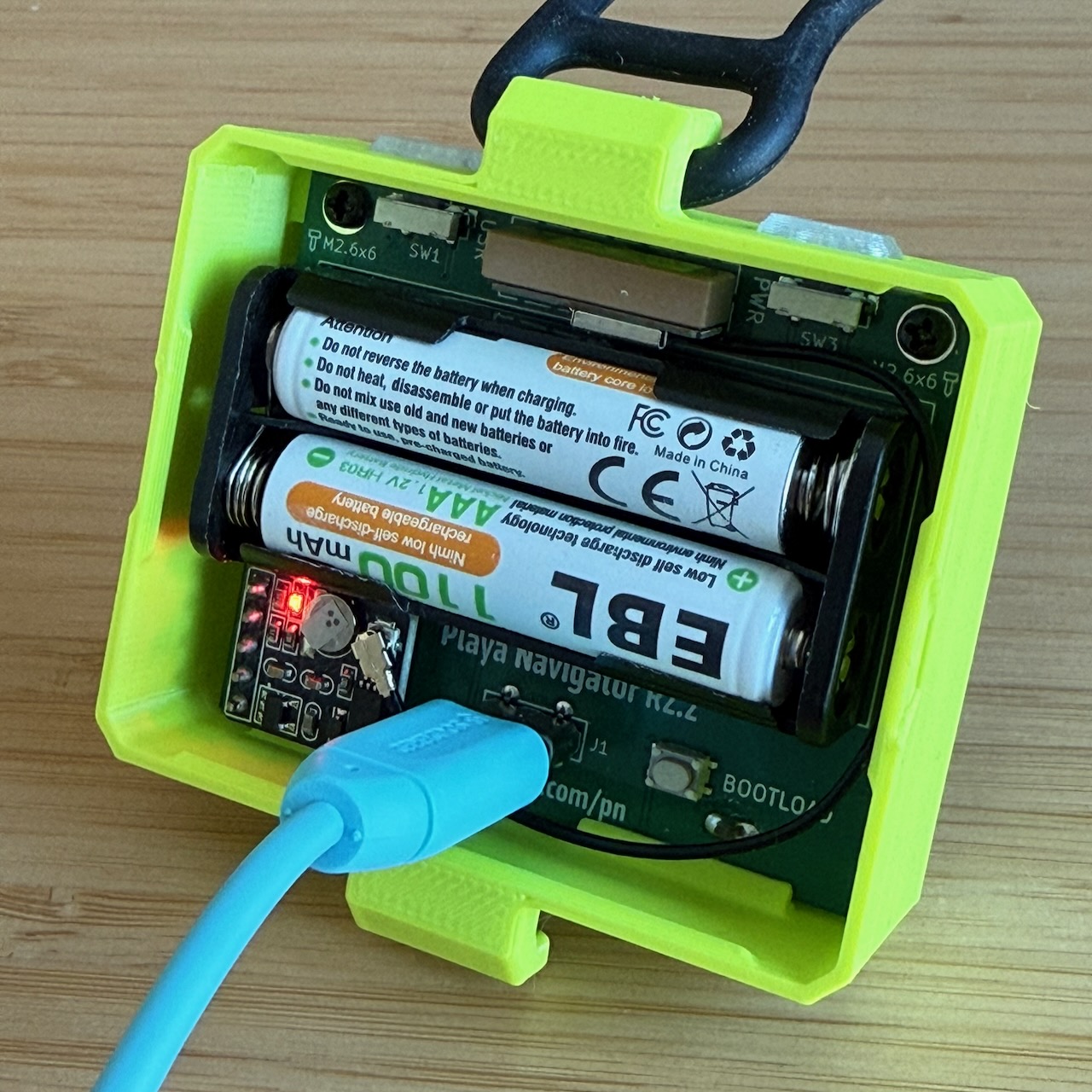
Connect the Playa Navigator to your computer with a USB-C cable.
-
Remove the back cover and plug in your USB-C cable.
-
Turn on the device by pressing the power button.
-
-
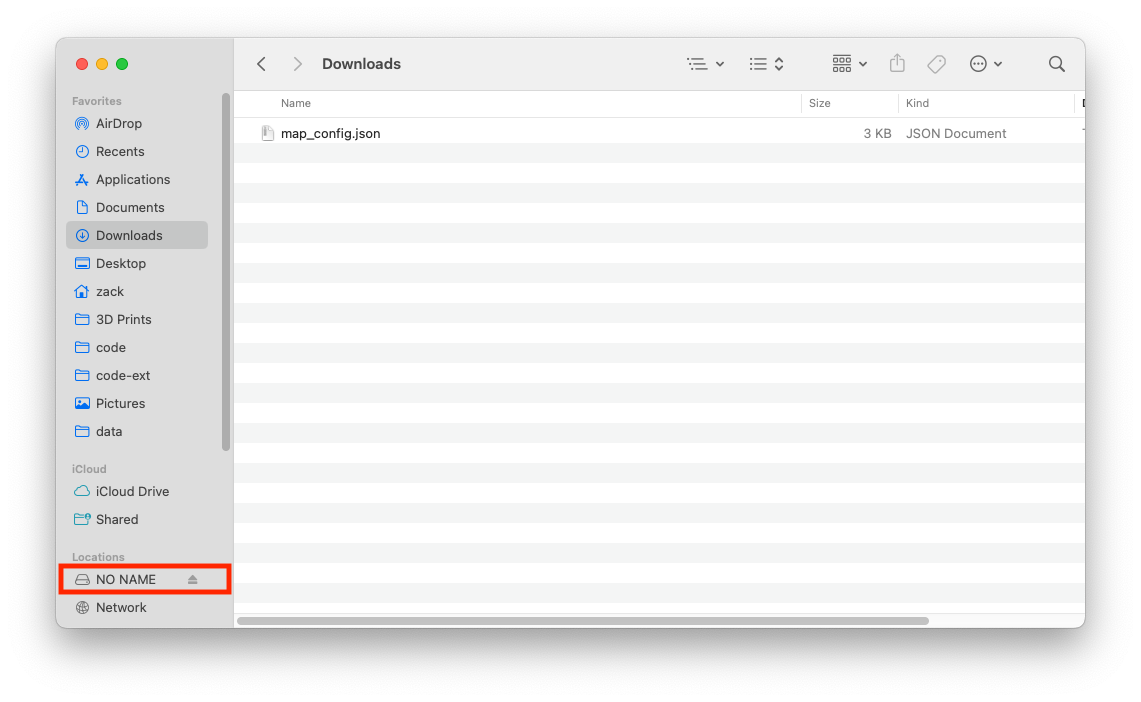
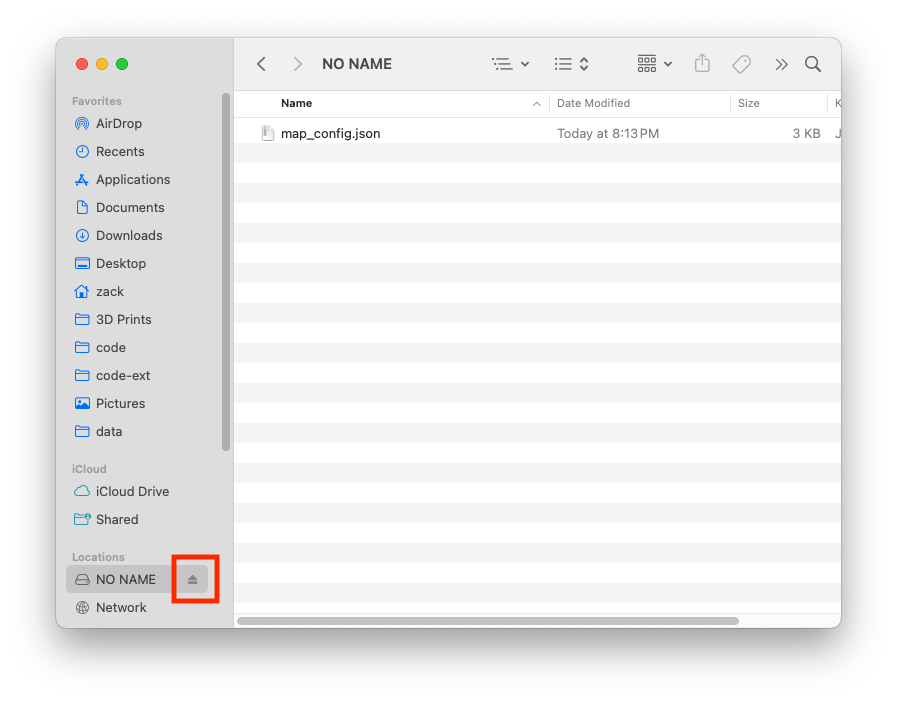
After some time, a new USB drive named NO NAME will appear.
-
Copy the
map_config.jsonfile you downloaded to NO NAME. The easiest way is to drag and drop directly. When asked about the duplicate file, click Replace.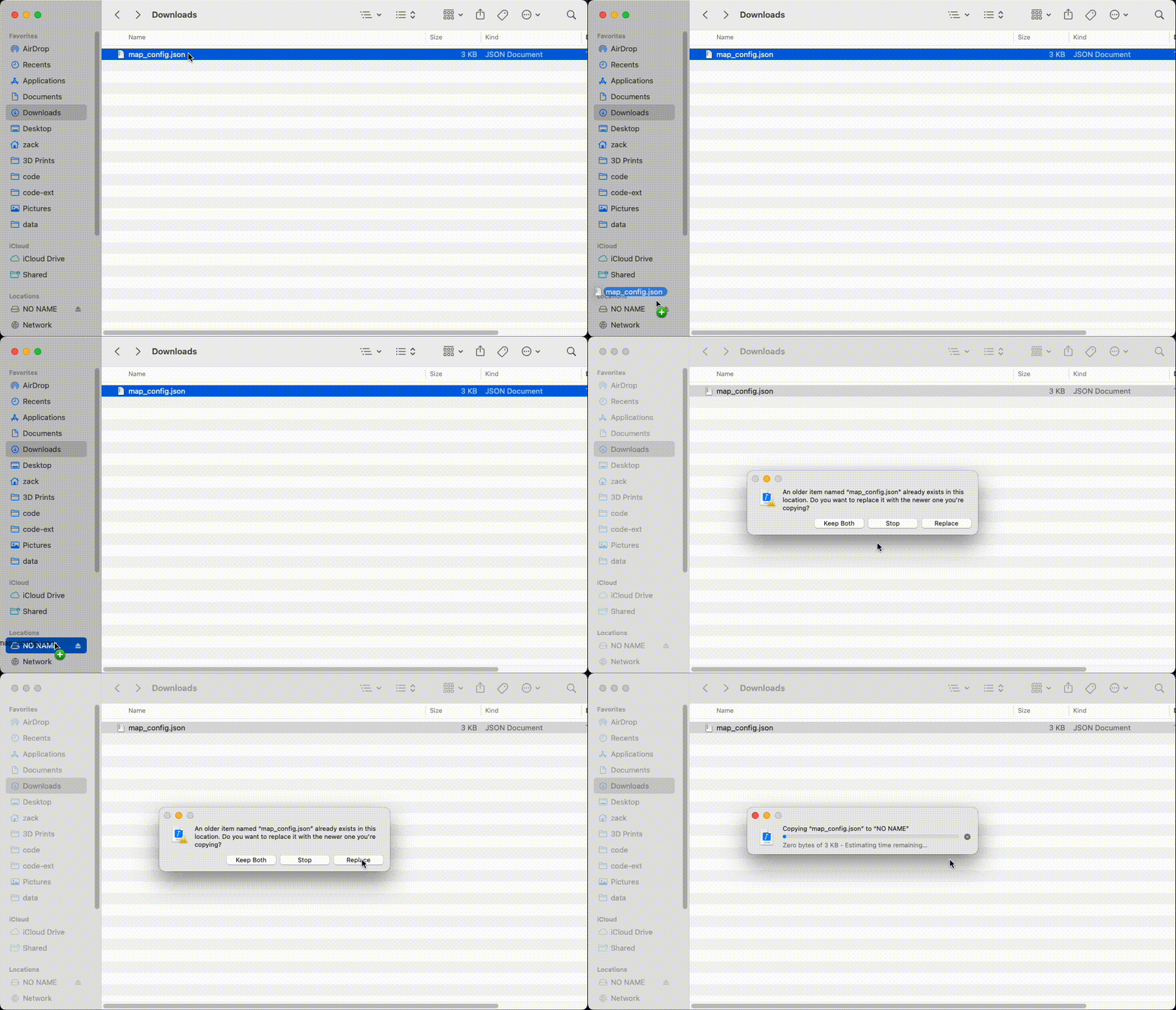
-
Eject the NO NAME drive. Once it disappears, unplug the Navigator from your computer.
-
Reboot the Navigator. Press the power button to shut down. Press again to start.
-
Important - Confirm the Navigator has the updated map.
-
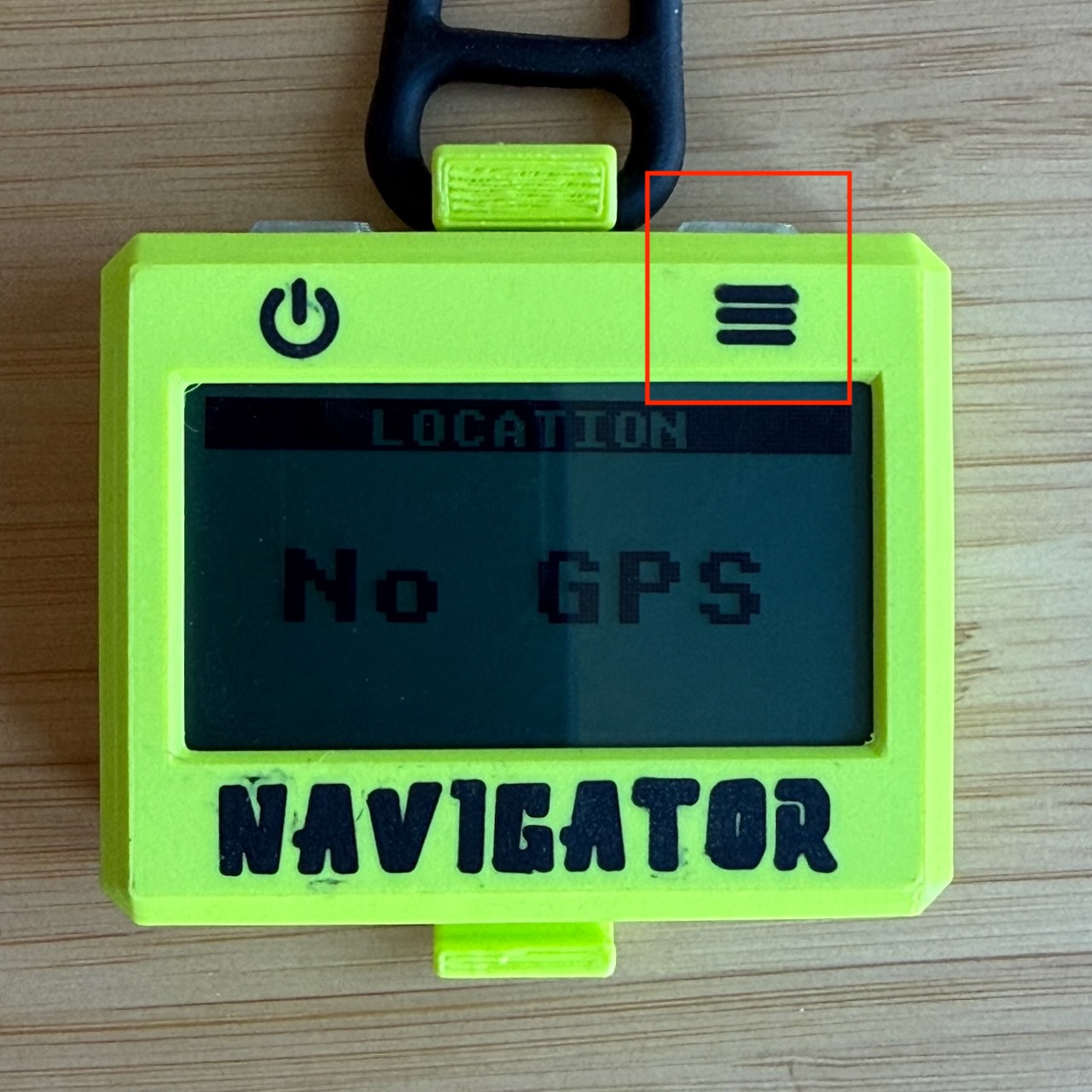
While on the LOCATION screen, press and hold the menu button (button on the right side). It will bring up the DIAGNOSTICS screen.
-
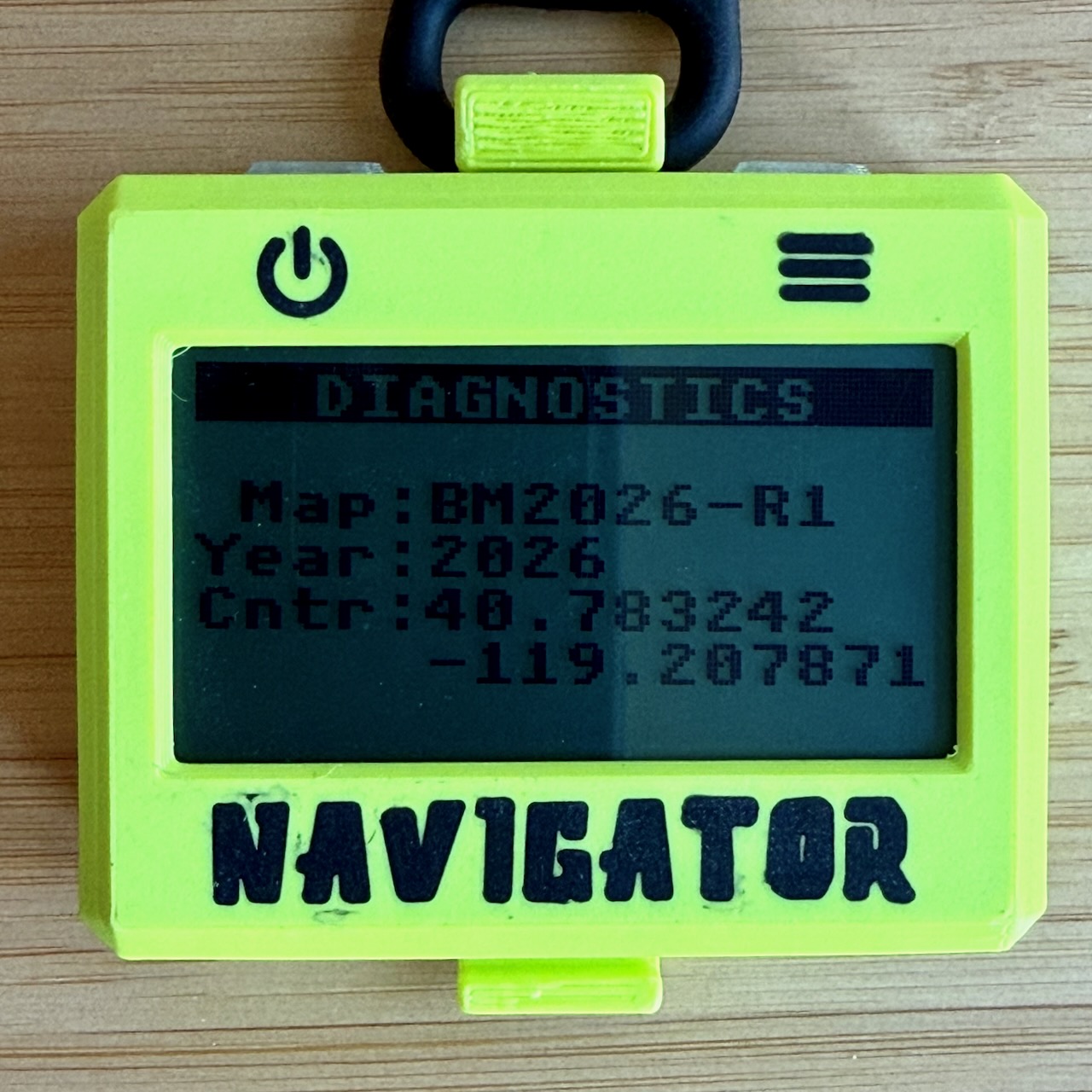
Press the same button several times until you get to the screen matching the image below. If it reads Map:BM2026-R1, you’ve upgraded successfully. If not, try these instructions again.
-
Notes
- Some USB cables are cheap and only provide power (no data). These will not work for the update. Try a different USB cable if the drive isn’t showing up on your computer.